
Setup guide
Set up Sprint Board TV
From a new Apple TV to your board on the wall in about five minutes, with the Siri Remote and your iPhone.
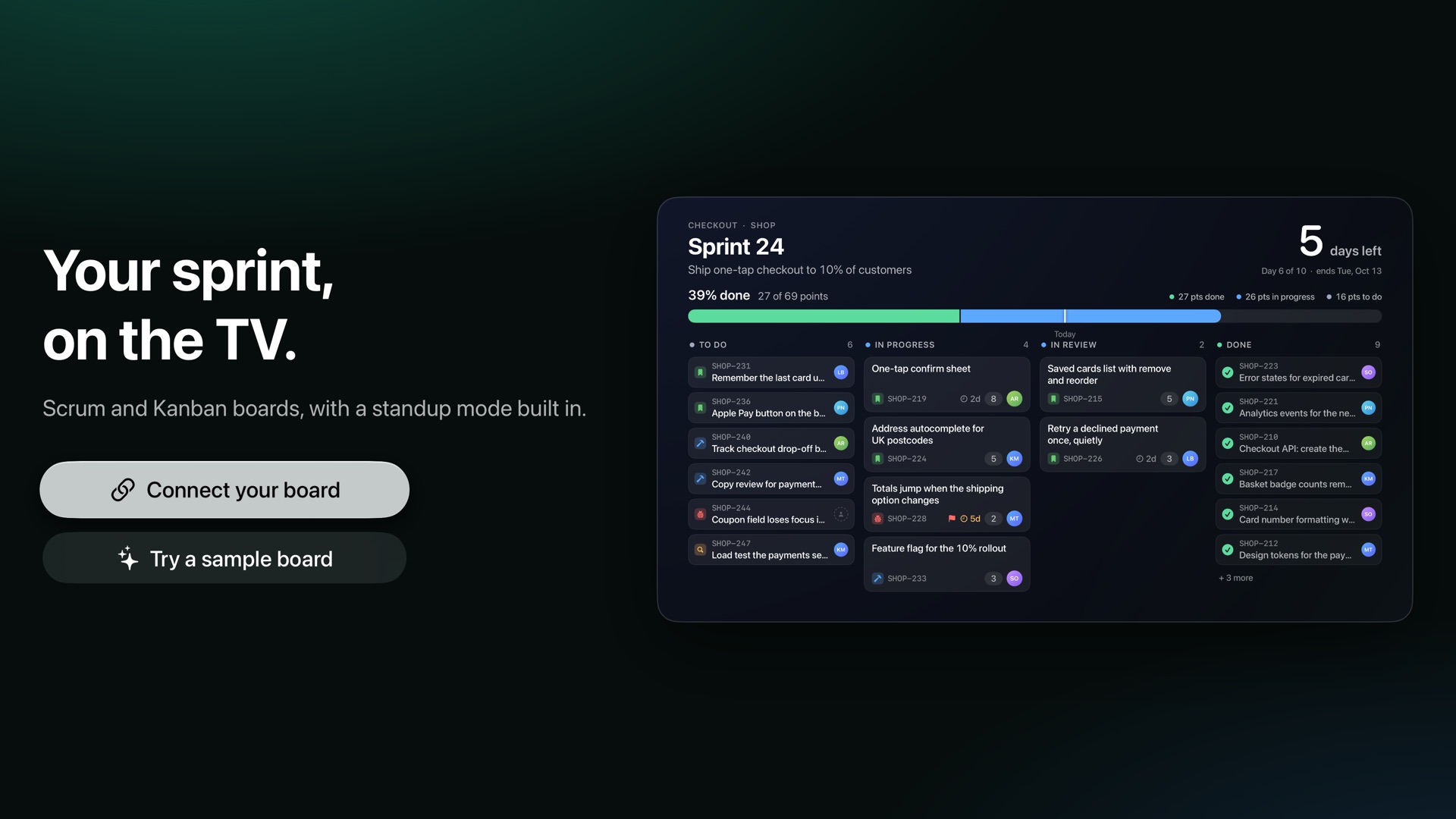
Step 1: Open Sprint Board and choose Connect your board
On the Apple TV, open the App Store, search Sprint Board and install Sprint Board TV. Apple TV apps install on the Apple TV itself, not from a phone or a Mac. Then open it and select Connect your board.
Want to look around first? Try a sample board shows a made-up team's sprint, free. Hold the clickpad on it and choose Kanban sample to see a kanban board.
Step 2: Choose Jira or Linear
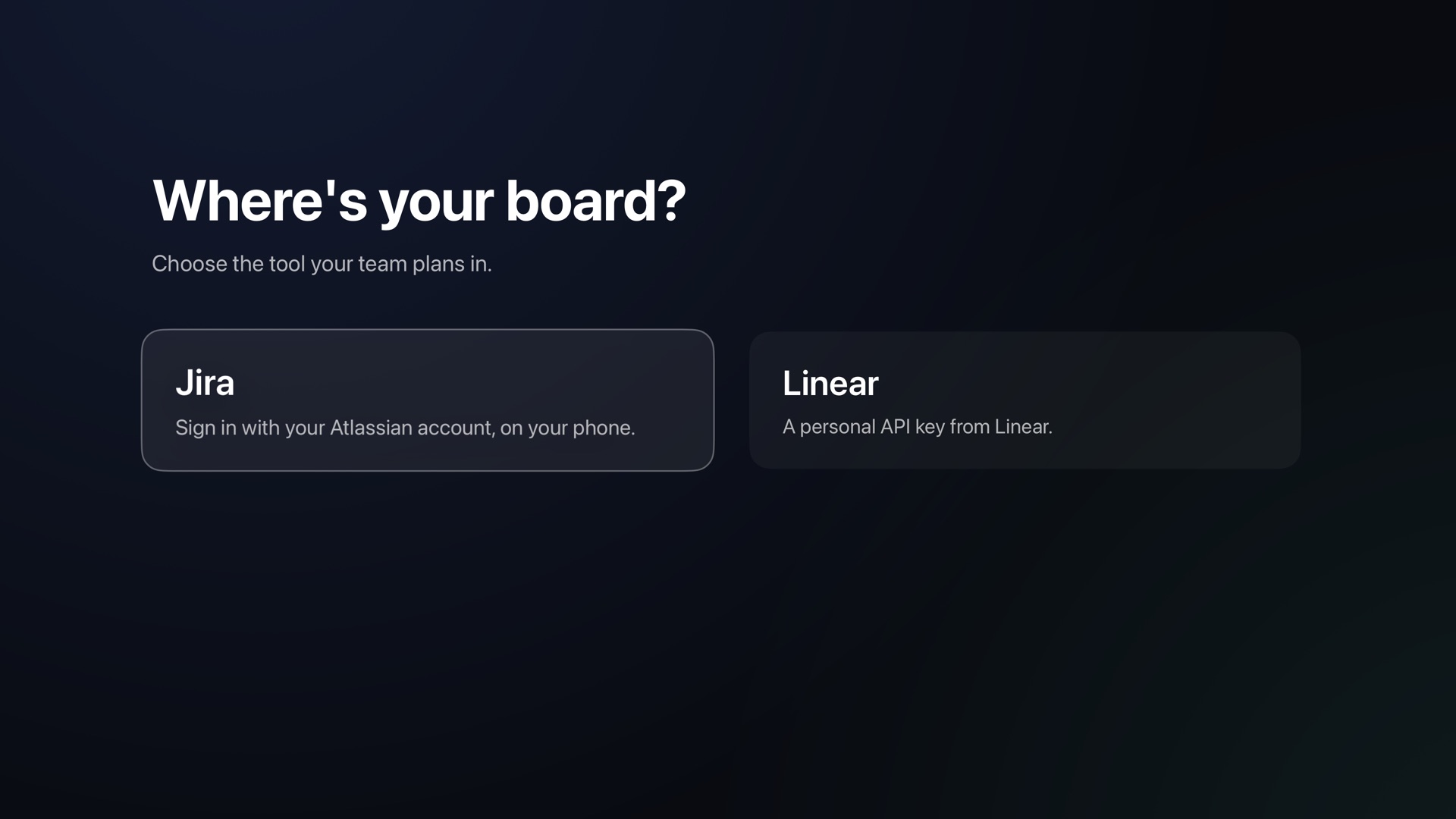
Select Jira or Linear, whichever your team plans in. For Jira, carry on with step 3; for Linear, skip to step 4.
Step 3: Jira: sign in on your phone
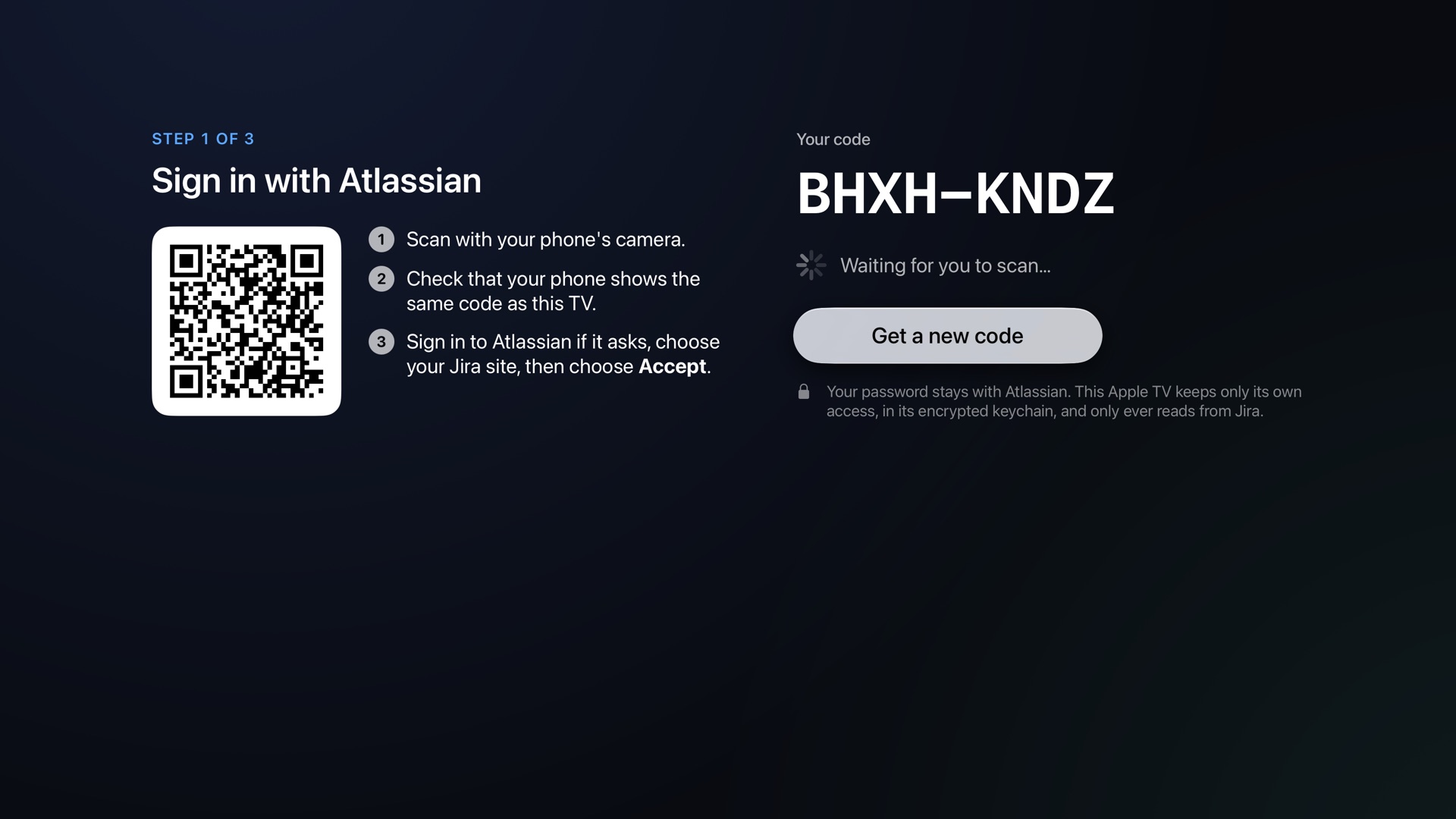
The TV shows a QR code and a short code.
- Scan the QR code with your iPhone's camera.
- Check that your phone shows the same code as the TV.
- Sign in to Atlassian if it asks, choose your Jira site, then choose Accept.
The TV moves on by itself. Your password goes only to Atlassian, and Sprint Board can only read. If the code runs out first, select Get a new code.
Step 4: Linear: make an API key on your phone
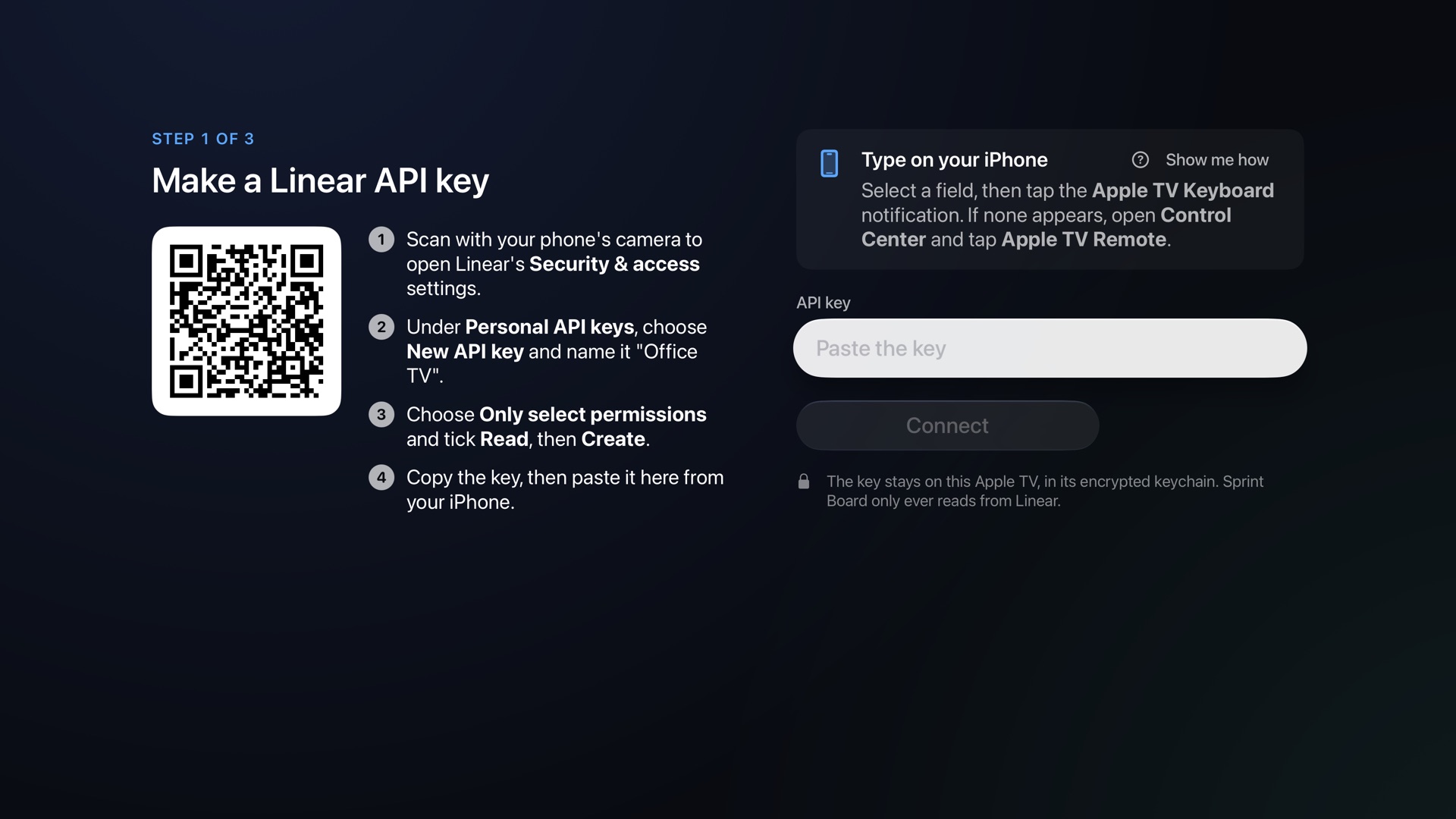
Sprint Board reads Linear with a personal API key: a password-like key for apps.
- Scan the QR code on the TV with your iPhone's camera. It opens Linear's Security & access settings.
- Under Personal API keys, choose New API key and name it "Office TV".
- Choose Only select permissions and tick Read, then Create.
- Copy the key, then paste it into the TV from your iPhone, through the keyboard notification or the remote in Control Center.
No keyboard notification on your iPhone?
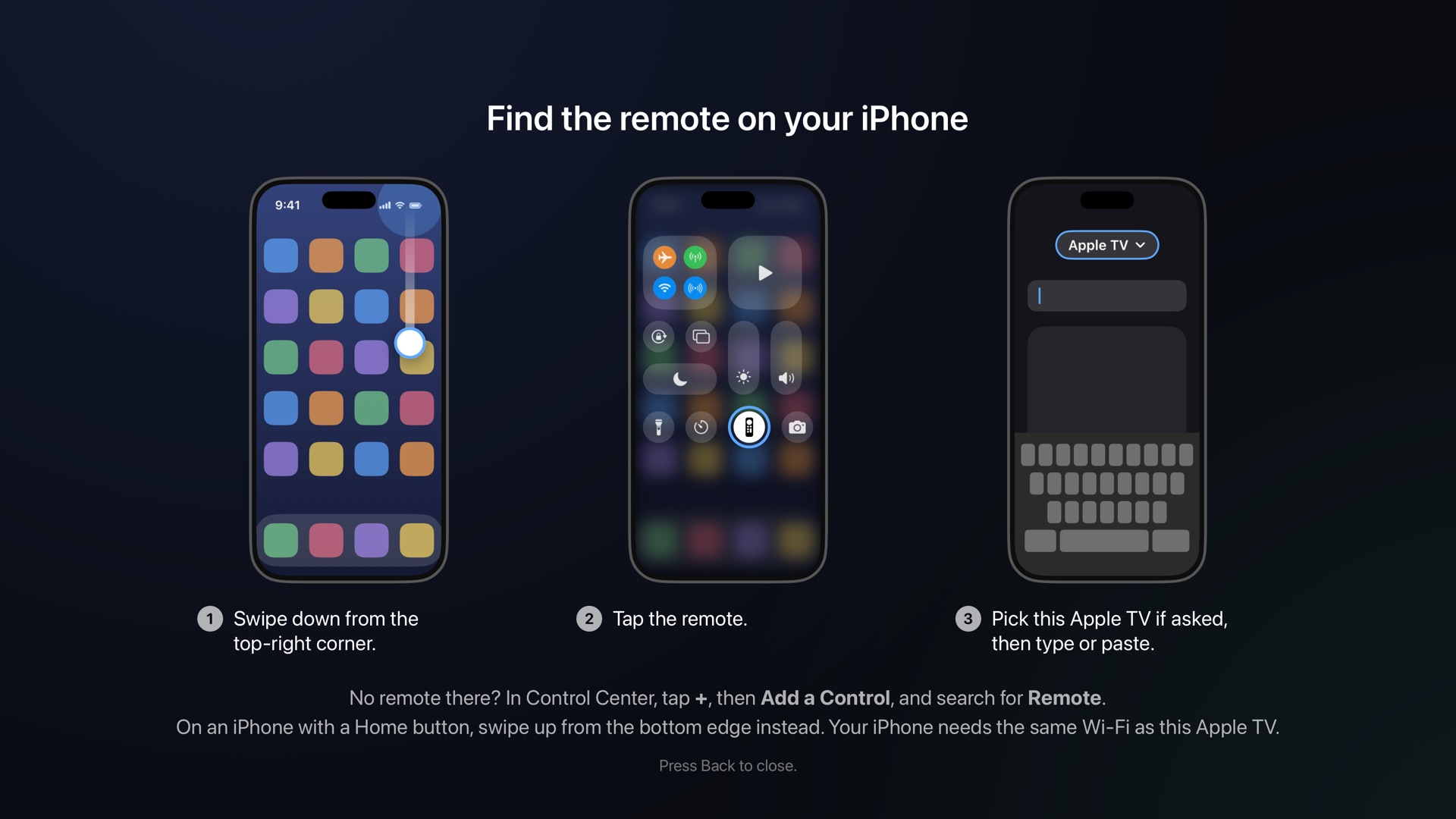
When a field is selected on the TV, an Apple TV Keyboard notification usually appears on your iPhone: tap it and type or paste there. If it doesn't, use the Apple TV Remote in your iPhone's Control Center. It types on the TV just the same:
- Swipe down from the top-right corner of your iPhone to open Control Center. On an iPhone with a Home button, swipe up from the bottom edge.
- Tap the Apple TV Remote button, the one with a small remote on it.
- Choose this Apple TV at the top if asked. The first time, your iPhone may ask for the four-digit code shown on the TV.
- Select a field on the TV. A keyboard appears in the remote: type, or paste.
No remote in Control Center? Open Control Center, tap +, then Add a Control, and search for Remote.
Why the notification doesn't always come: it only goes to an iPhone signed in to the same Apple Account as the Apple TV, with Bluetooth and Wi-Fi on, and even then not every time. The remote only needs your iPhone on the same Wi-Fi as the Apple TV, which makes it the dependable way in an office. The same help is on the TV: select Show me how on the setup screens.
Step 5: Choose the board
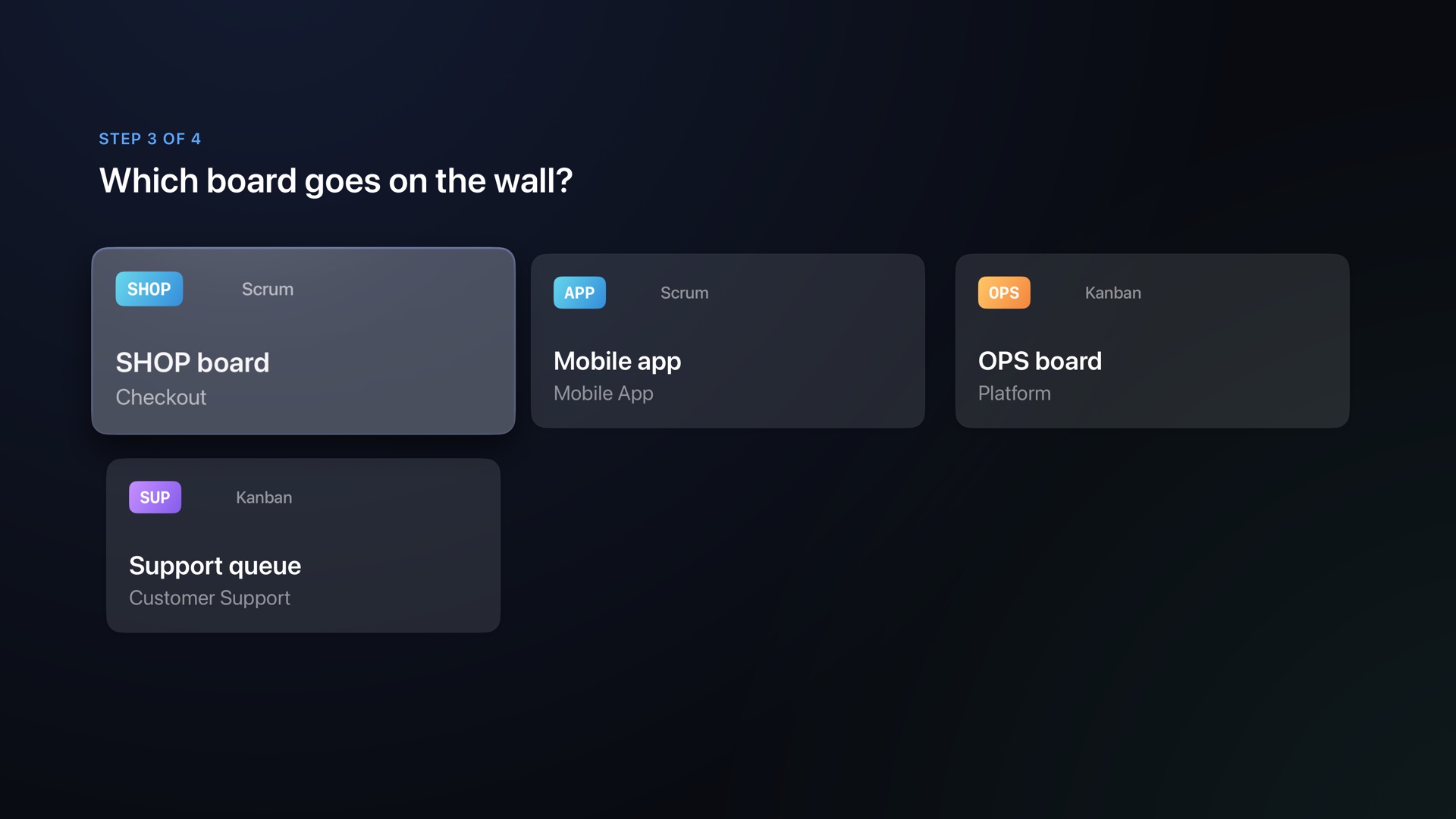
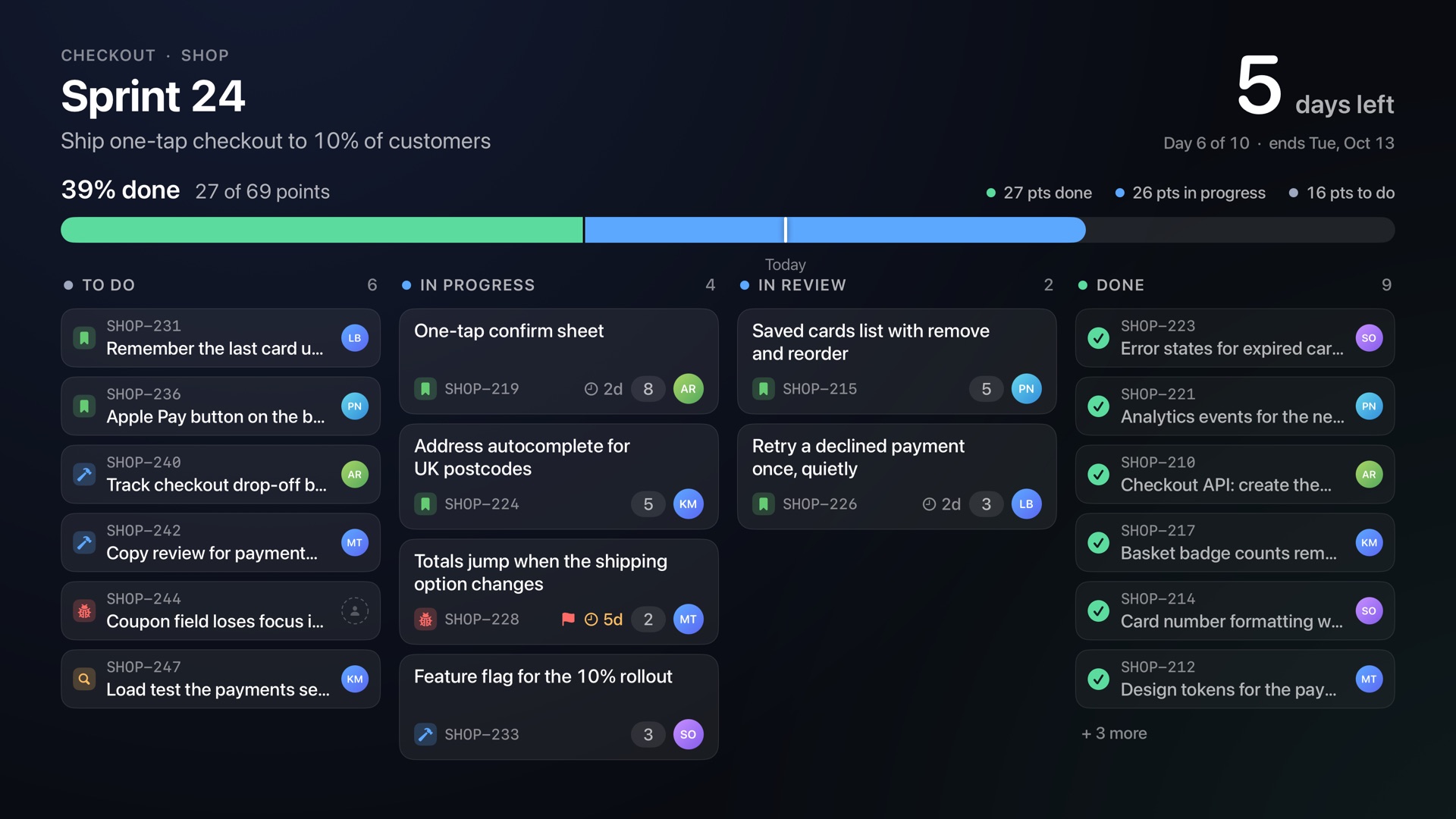
Sprint Board lists the scrum and kanban boards your Jira account can see, or your Linear teams. A scrum board shows its active sprint, and a Linear team its current cycle. A kanban board, or a Linear team without cycles, shows its flow, with each column's work-in-progress limit where it has one.
If there's only one board, it's chosen for you.
Step 6: Choose how many TVs
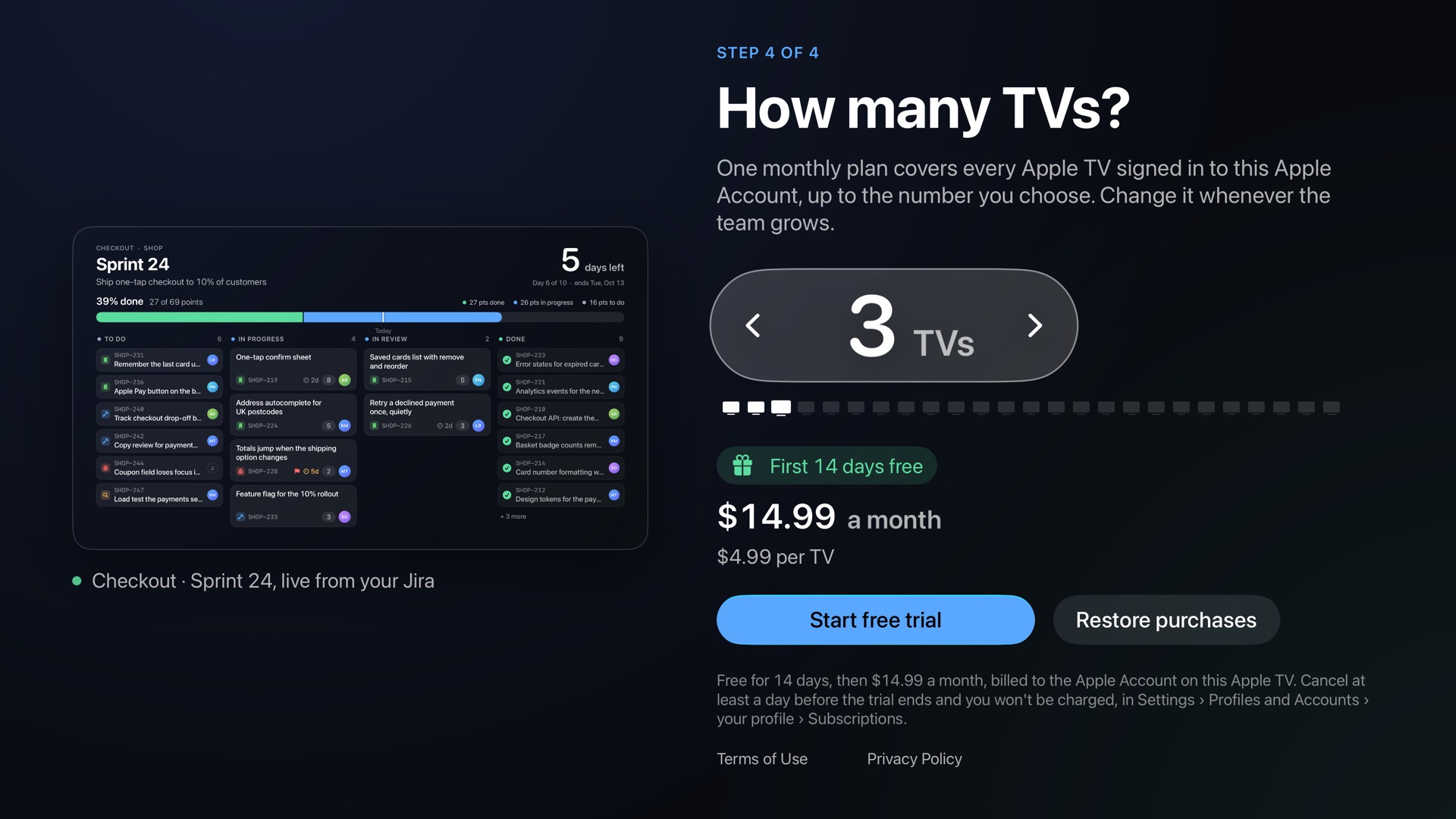
Choose how many Apple TVs will show the board, from 1 to 25, and start your plan. Every plan starts with a 14-day free trial, once per Apple Account.
Other Apple TVs signed in to the same Apple Account join this plan and skip this step. See all prices.
Step 7: Name the TV
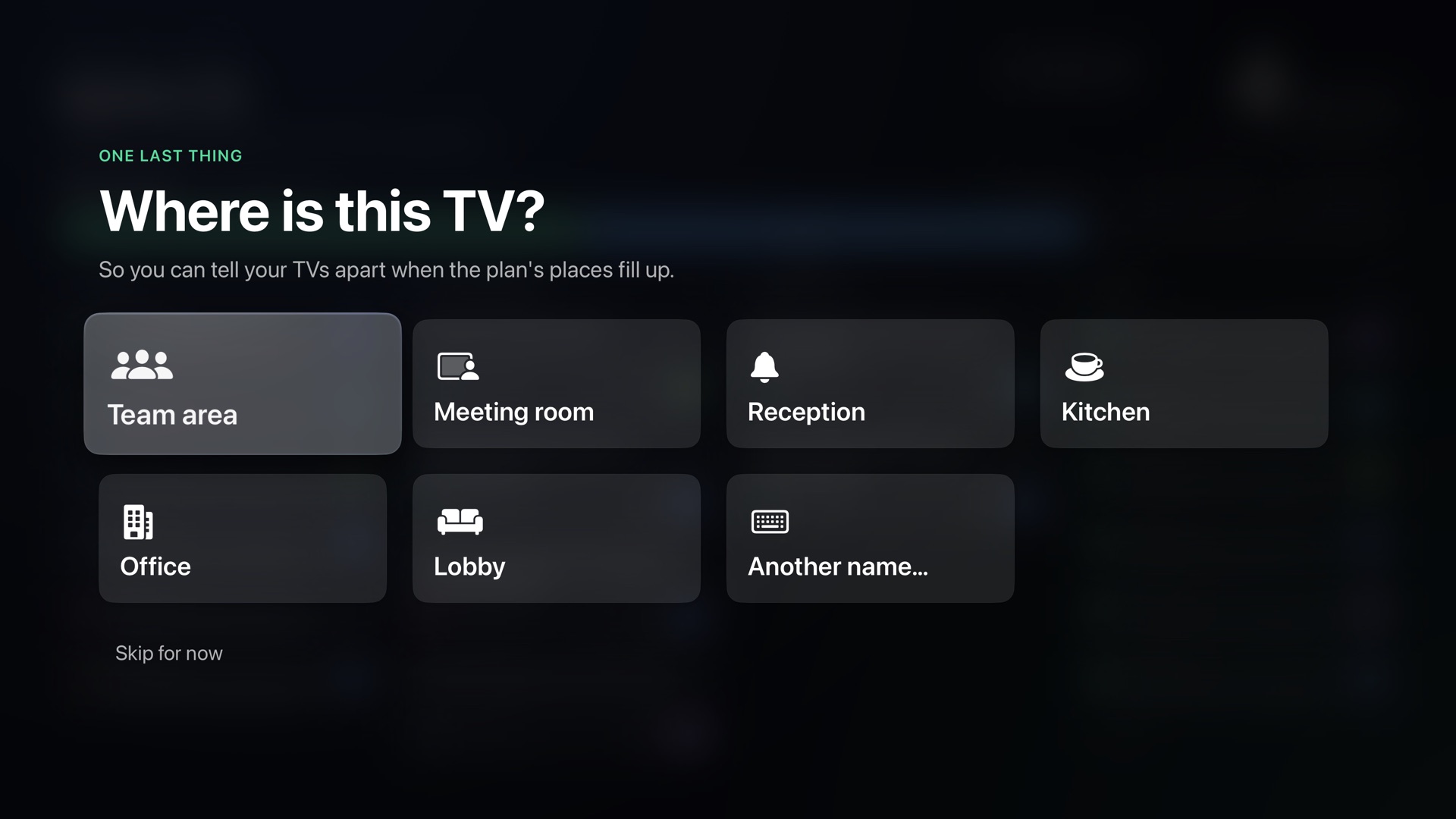
Each TV on a plan asks once where it is, such as Team area or Reception, so you can tell your TVs apart later in Settings › Plan.
Then your board is on the wall. It refreshes itself every minute.
Keep it on the wall
- Set the Apple TV's Settings › General › Sleep After to Never, and check the TV itself doesn't switch off on a timer. Sprint Board keeps the Apple TV awake while the board is showing.
- On the board, hold the clickpad for options: start standup, change board, refresh and settings. Play/Pause starts the standup.
- To add another TV, open Sprint Board on an Apple TV signed in to the same Apple Account. It joins your plan.
If something's not right
"That code has expired"
A code only lasts a few minutes. Select Get a new code on the TV and scan again.
"Access wasn't allowed on your phone"
Accept wasn't chosen on Atlassian's page. Select Get a new code and try again, and check you're signed in to the Atlassian account that can see the board.
"Jira needs this TV to sign in again"
Jira no longer accepts the TV's sign-in. That happens if the TV was off for 90 days, the Atlassian account's password changed, or Sprint Board TV was removed from the account's connected apps. Choose Sign in again and approve on your phone.
"Linear didn't accept this key"
Check the key was copied whole and hasn't been revoked. If the TV says the key can't read, edit it in Linear's settings and tick Read.
"No boards here"
The account can't see a scrum or kanban board on that Jira site. Ask a Jira admin to give it access to the board, or sign in with an account that can see it.
Nothing appears on my iPhone when I select a field
Use the remote in Control Center.
Still stuck? Support has more answers, and how to reach us.